Begin by uploading the image that will become your AI Twin's face. You can upload a fresh photo of yourself, use any image, or select from avatars you've previously generated in your account.
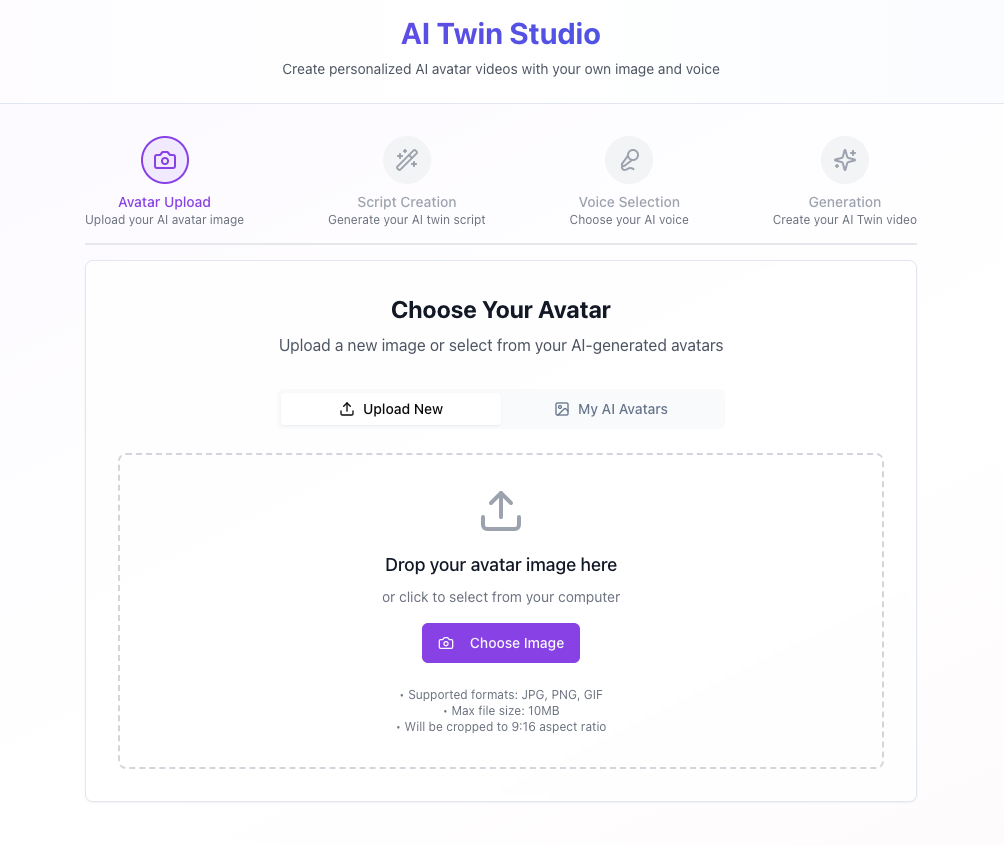
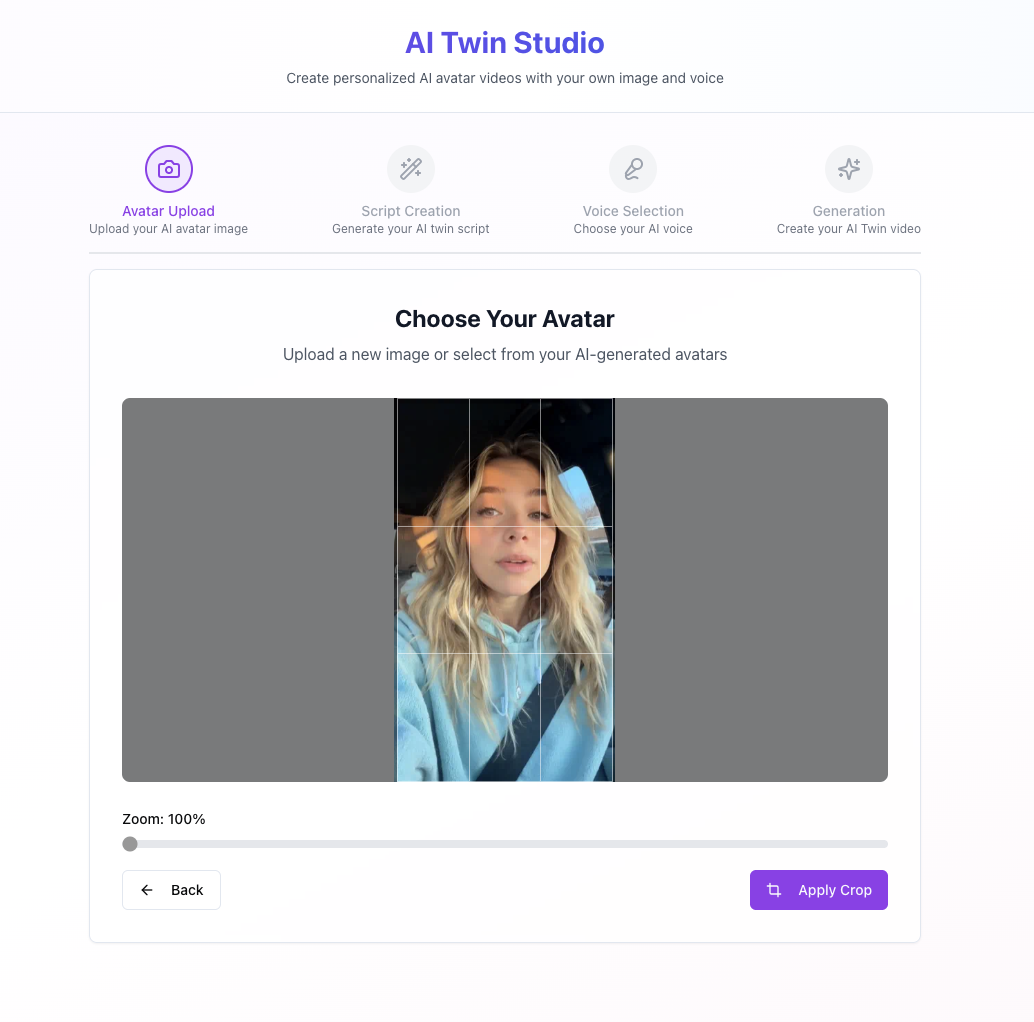
Once your image is uploaded, you'll be taken to the crop screen. The image will be cropped to a 9:16 aspect ratio (portrait orientation) for optimal video output. Use the zoom slider to adjust, then click Apply Crop to confirm.
Next, provide the script your AI Twin will speak in the video. You have three options here — use whichever works best for your workflow.
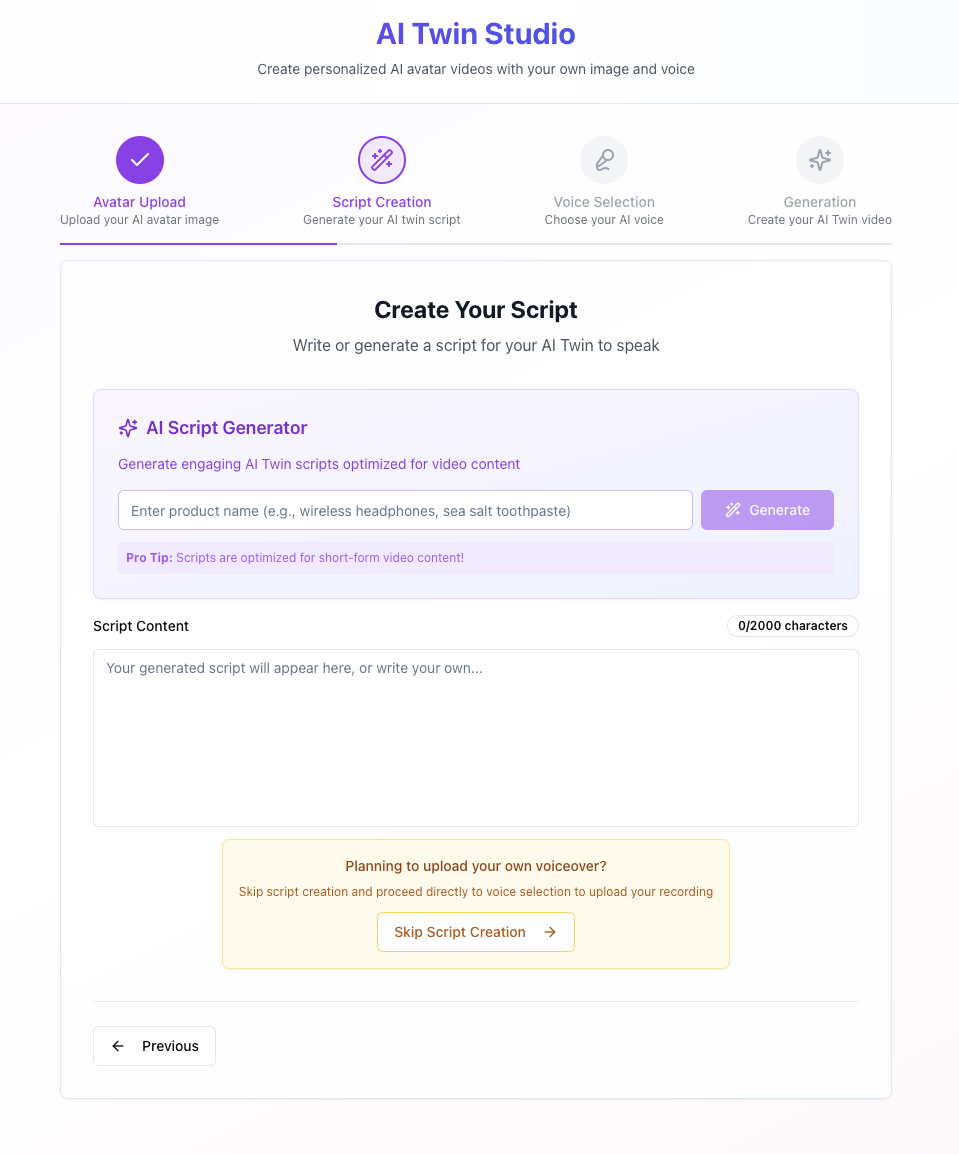
Using the AI Script Generator: Simply enter your product name (e.g., "wireless headphones" or "sea salt toothpaste") and click Generate. The AI will create an engaging script optimized for short-form video content.
Writing your own: Paste or type your script directly into the "Script Content" text area. You have up to 2,000 characters to work with.
If you entered a script in the previous step, you'll now choose the voice for your AI Twin's voiceover. This step gives you powerful flexibility — clone your own voice for maximum authenticity or choose from a library of built-in voices.
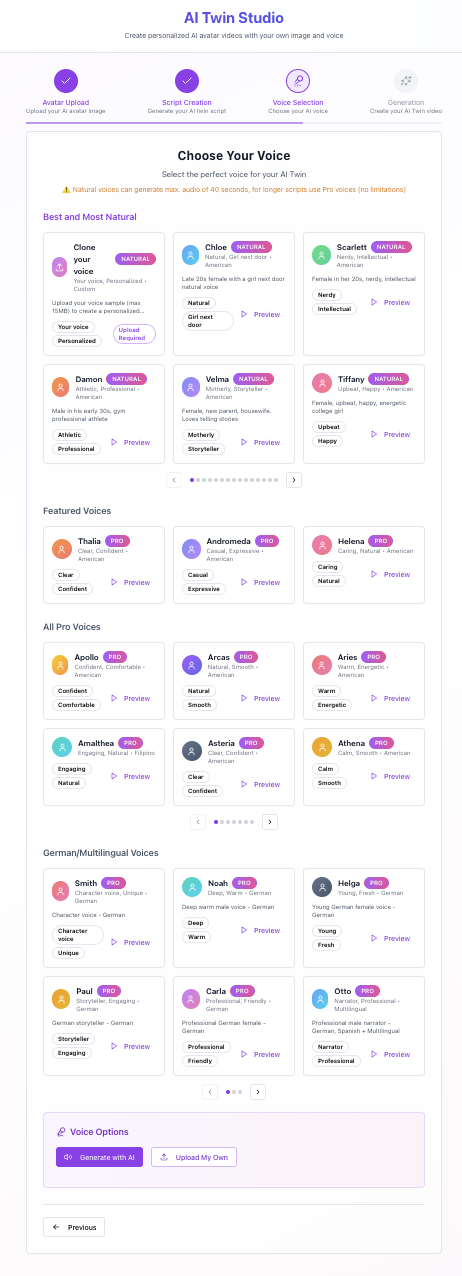
The voice library is organized into categories to help you find the perfect match:
- Best and Most Natural — High-quality natural-sounding voices including voice cloning. Upload a voice sample (max 15MB) to create a personalized clone of your own voice.
- Featured & Pro Voices — A curated library of professional voices with different tones and styles — confident, warm, energetic, casual, and more.
- Multilingual Voices — German, Spanish, and other language options for creating videos that speak to a global audience.
- Upload My Own — Alternatively, upload a pre-recorded voiceover file if you have one ready. This is ideal if you've already recorded the exact narration you want.
You're almost there! The final step is the review screen where you can verify everything before generating your AI Twin video. Take a moment to check each element carefully.
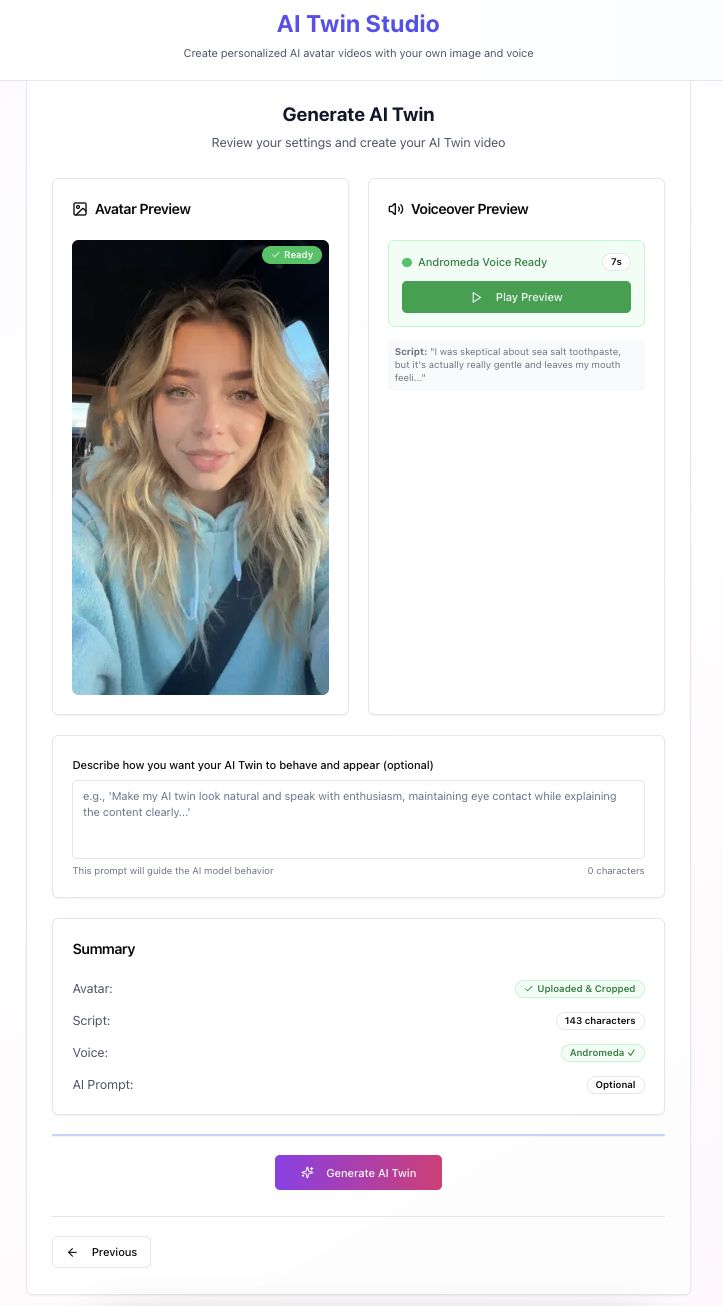
On this screen you'll see:
- Avatar Preview — Your uploaded and cropped image displayed on the left. Verify it looks correct.
- Voiceover Preview — Click the Play Preview button to listen to the generated voiceover. Make sure it sounds right and matches your expectations before proceeding.
- AI Prompt (Optional) — Describe how you want your AI Twin to behave and appear. For example, you can instruct it to maintain eye contact, speak with enthusiasm, or use specific gestures.
- Summary — A quick overview of your avatar status, script length, and selected voice.
When everything looks and sounds perfect, click the Generate AI Twin button. You do not need to wait on this page — you'll receive an email notification as soon as your AI Twin video is ready. Feel free to close the tab or continue using the app.